The Online Presence tab of Shop Settings holds what your booking page shows about you beyond your services: a line across the top, your Google listing with its map and reviews, and your links.
Opening the settings
On a computer: click your name at the bottom of the sidebar, choose Settings → Shop, and open the Online Presence tab. Change what you need and click Save Changes.
On a phone: Menu → Shop settings, then Announcement bar or Google & social links.
Not to be confused with Online Presence in the sidebar, which holds Theme Gallery, Theme Design, SEO and QR codes.
Announcement bar
A slim line of text across the top of your booking page, above the header.
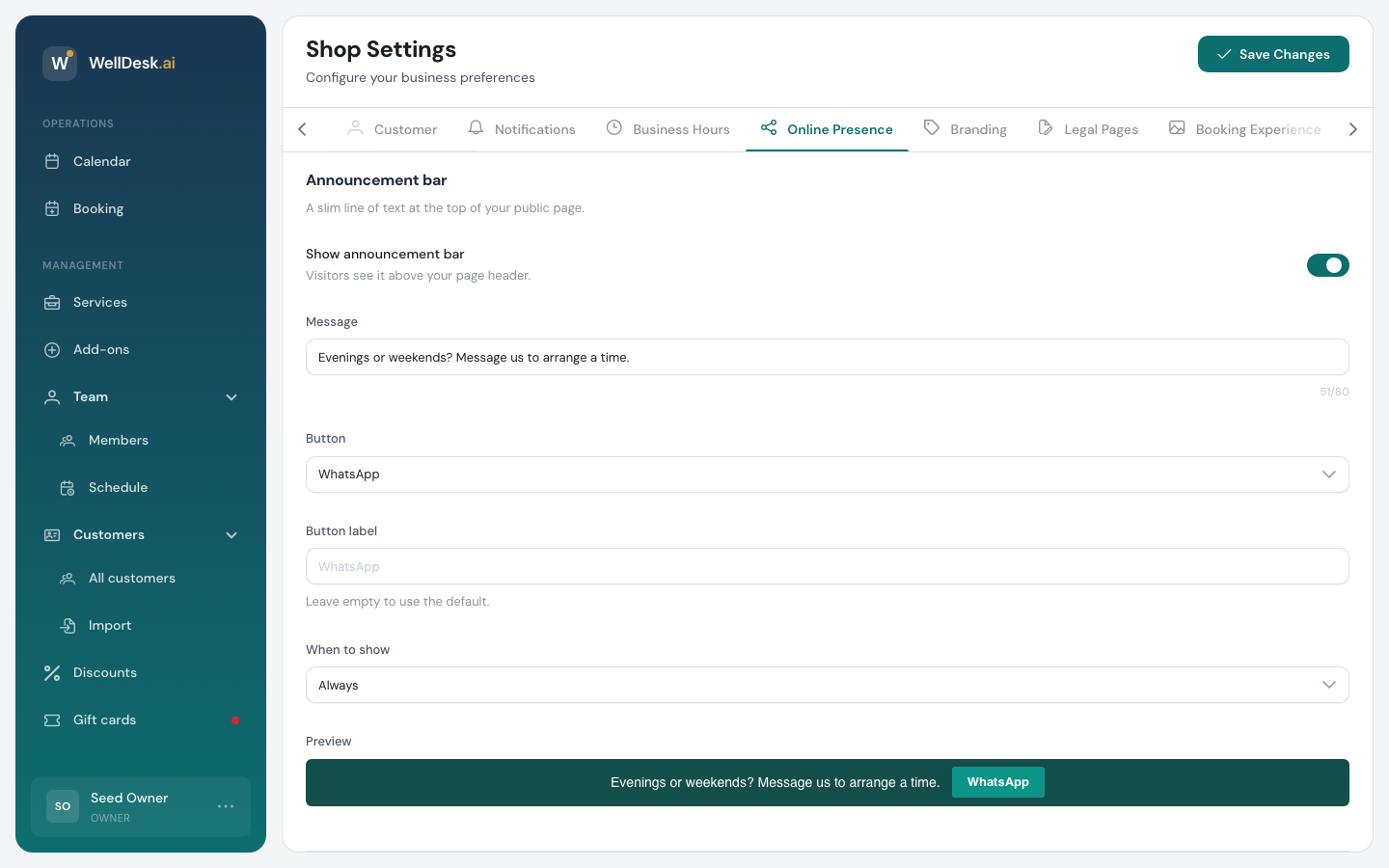
- Switch on Show announcement bar.
- Write the Message: one line, up to 80 characters.
- Pick a Button: None, WhatsApp, Phone call, Book online or Custom link. Change its text under Button label (up to 24 characters), or leave it empty for the default. Custom link also asks for the Link.
- Pick When to show: Always, Outside opening hours, or Between two dates with a Start date and an End date.
- Check the Preview and click Save Changes.
A button only works if what it needs is set up: WhatsApp needs a WhatsApp link under Social Links, Phone call a phone number in Shop Details, and Book online online booking switched on. Outside opening hours needs your opening hours set, or the bar never shows.
Good uses: Closed 1 to 15 August, Evenings or weekends? Message me on WhatsApp, or a reason why online booking is paused.
Website
If your shop has its own website, add it under Website. It shows on your booking page. Use the
full address, starting with https://.
Google Business Profile
Connect your Google Business Profile once. It puts the map on your booking page and shows your Google rating and reviews, and it is where Google review requests send your clients.
- Open your business in Google Maps (not Google Search) and tap Share.
- Copy the link. It starts with
maps.app.goo.gl. - Paste it into Google Business link and click Connect.
Once connected, the section shows your listing, your rating and review count, and a Map preview.
- Reviews refresh about once a week. Up to 5 show on your booking page, always with the reviewer’s name, as Google requires. They appear in your page’s testimonials section; if that section is turned off in the theme, this tab tells you so.
- No reviews yet? The map still works, and the rating appears once your first review comes in.
- Disconnect removes the listing at any time.
- Connecting also gives you a ready-made Rate us on Google QR code. See QR Codes.
When the map pin is in the wrong place
Google places the pin from your listing. If your front door is somewhere else, open Map pin in the wrong place?, paste a map embed from Google Maps (Share → Embed a map) and click Use this map instead. Your reviews stay connected either way. Remove map goes back to your listing’s pin.
If you set up a map this way before listings could be connected, it keeps working. Connecting your listing adds the rating and reviews without moving your pin.
Social Links
Add your Instagram, Facebook, X, TikTok, WhatsApp and LINE links, and your WeChat ID. They show in your booking page’s footer. Leave a field empty to hide it.
The WhatsApp link is also what the announcement bar’s WhatsApp button uses. A link in the form
https://wa.me/34600000000 works best.
Additional Contacts
Add Contact adds another way to reach you, with a label and a value, such as LINE OA and your ID. They show in the location section of your booking page.