An earnings export is a file with every completed session in a period, plus your expenses and the totals. Send it to your accountant, or use it to pay commission.
Downloading a report
On a computer:
- Open Earnings and set the Start Date and End Date. To export one person, pick them instead of All Staff.
- Click Export.
- Tick or untick Include client names and notes (see below).
- Click Download CSV or Download Excel.
On a phone:
- Open Menu, then Earnings, and choose the period.
- Tap Download report at the bottom. To export one therapist, tap them under By therapist and use the download button on their page.
- Turn Include client names and notes on or off.
- Tap CSV file or Excel file.
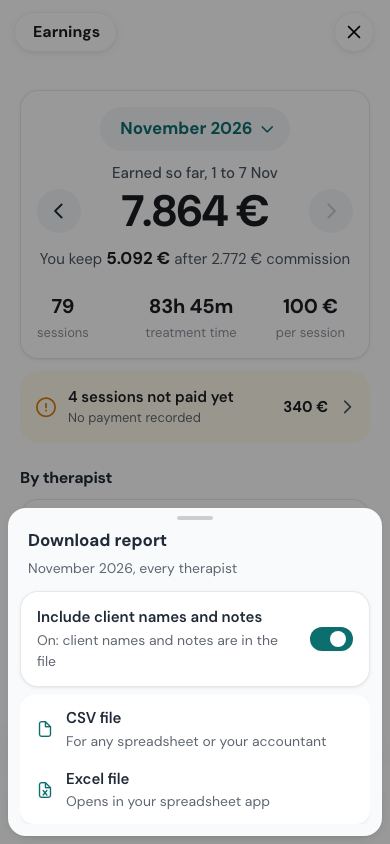
The file covers only the period and the people you picked.
CSV or Excel
- CSV opens in any spreadsheet and is what most accounting software imports.
- Excel is a workbook with a separate sheet for each part: summary, sessions, services, payment methods, add-ons and expenses.
What’s in the file
Every session in the period, with:
- the date, service and duration,
- the Amount for the session,
- VAT Rate (%), VAT Amount and Amount After VAT,
- the Tip, in its own column,
- the add-ons and what they came to,
- the Commission, when you track it,
- the Payment Type, and whether the payment was Collected.
Summaries for each therapist and service, and a breakdown by payment method. A session paid by card and in cash shows both methods. Your own methods, such as Bizum, show by the name you gave them.
Your expenses for the same period, by category and one by one, from Tracking Expenses.
The totals: revenue, what was collected, what is not collected yet, total expenses, and net profit. When you have a tax rate set, a VAT Information block shows the VAT for the period.
VAT
The export works VAT out of each session using the Default Tax Rate (%) under Settings → Shop → Payments. It treats your prices as including VAT: a 121 € session at 21% shows 21 € VAT and 100 € after VAT.
- Tips never carry VAT.
- The VAT total is the sum of the VAT on each session, so the column always adds up to the total.
- With the rate at 0, or not set, no VAT is taken off.
Set the rate before you export. See Payment Settings.
Client names and notes
Include client names and notes decides whether the file names your clients. With it off, the file leaves out the client’s name, the add-on names, and both the client’s note and your private note. The amounts stay the same.
Turn it off before you send the file outside your shop: your accountant only needs the numbers. WellDesk remembers your choice on that device.
Commission columns
Commission columns appear only when Track Staff Commissions is on and your shop has at least two team members who take bookings. A one-person shop never gets them. Percentages are worked out on the Commission basis set on the Earnings page. See Earnings and Commission.
Tips
- Export whole months. It’s what your accountant expects, and it matches how commission is usually paid.
- Clear Not collected yet first. A session with no payment shows as not collected, which raises questions.
- Add your expenses before you export. They’re part of the file, and the net profit is wrong without them.