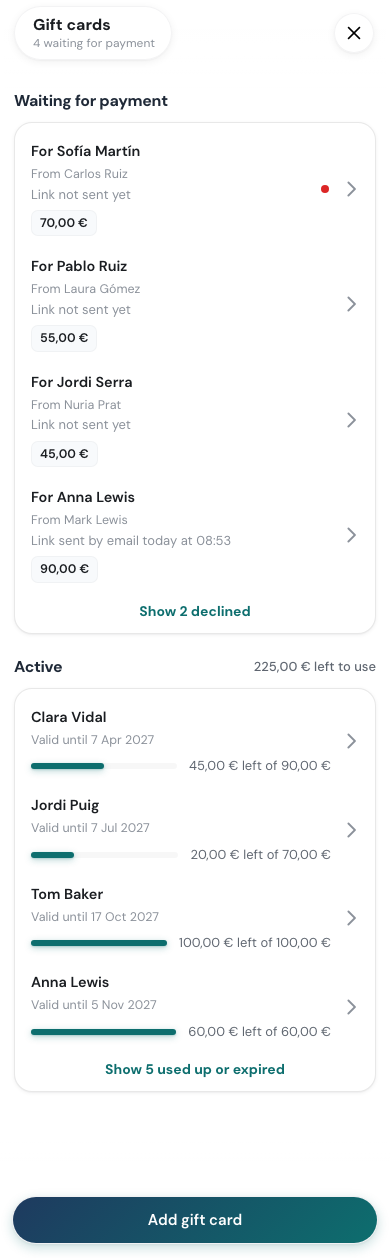
When Sell on your booking page is on (see Setting Up Gift Cards), customers can ask for a gift card online. Nothing is paid at that point. The request waits for you to arrange payment, and the card is only sent once you mark it paid.
What the customer fills in
On your booking page they open Gift card and fill in the Give a gift card form:
- Amount: one of your amounts, or Other amount if you allow it.
- Who is it for?: the person’s name and email, and an optional message.
- Email design: the look of the email. Preview the gift card shows the email and the PDF.
- Your details: their own name, email and phone number, so you can reach them about payment.
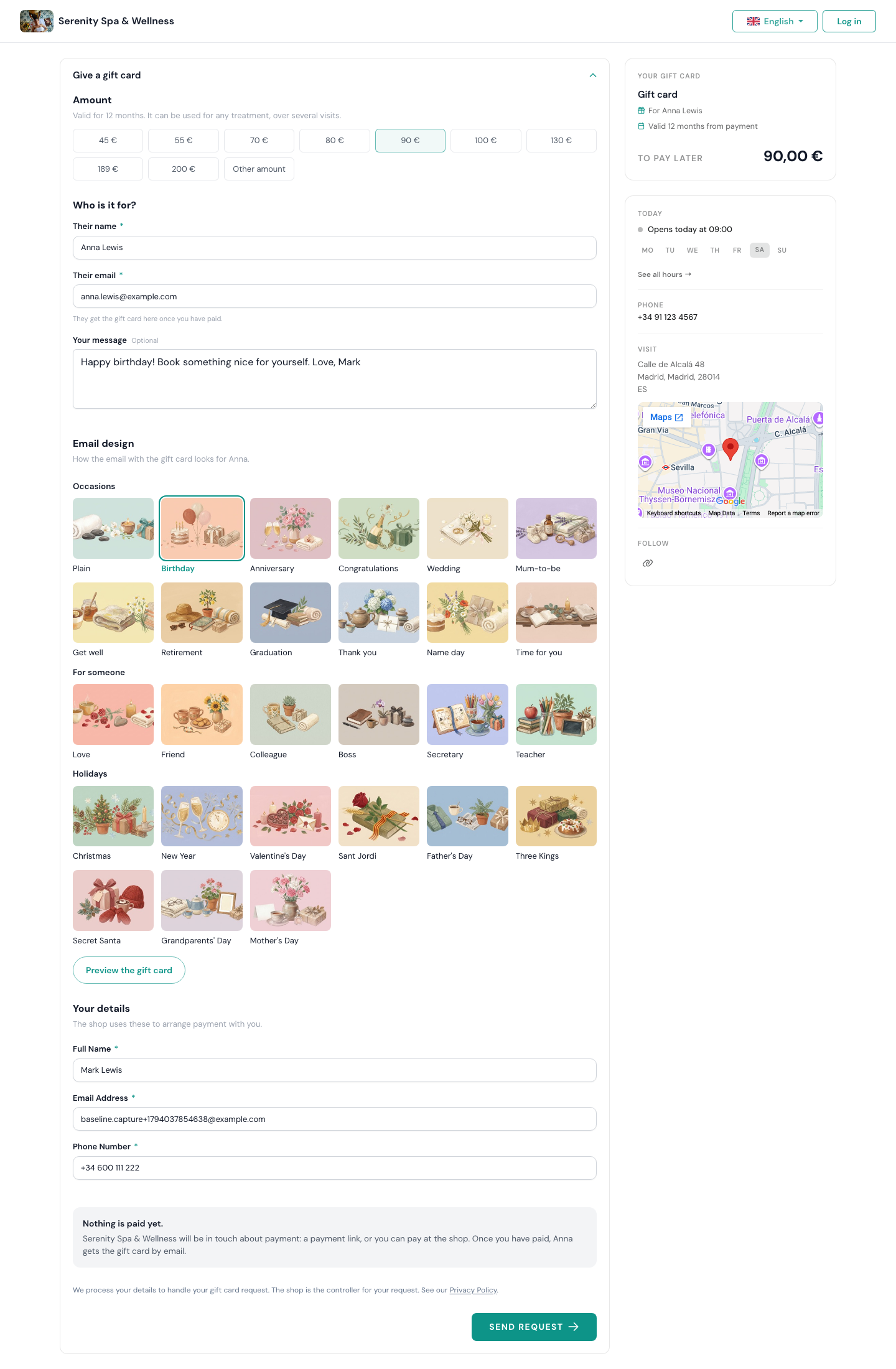
The form tells them plainly that nothing is paid yet and that you will be in touch with a payment link, or that they can pay at the shop. After Send request they get a copy of the request by email.
How you find out
- Every Owner and Administrator gets an email about the new request.
- On a computer, a red dot shows next to Gift cards in the sidebar until the request is opened.
- On a phone, Home shows “New gift card request!” and the Gift cards row in the Menu has a dot.
The request list
Go to Gift cards in the sidebar (on a phone: Menu → Gift cards). Requests are at the top under Waiting for payment.
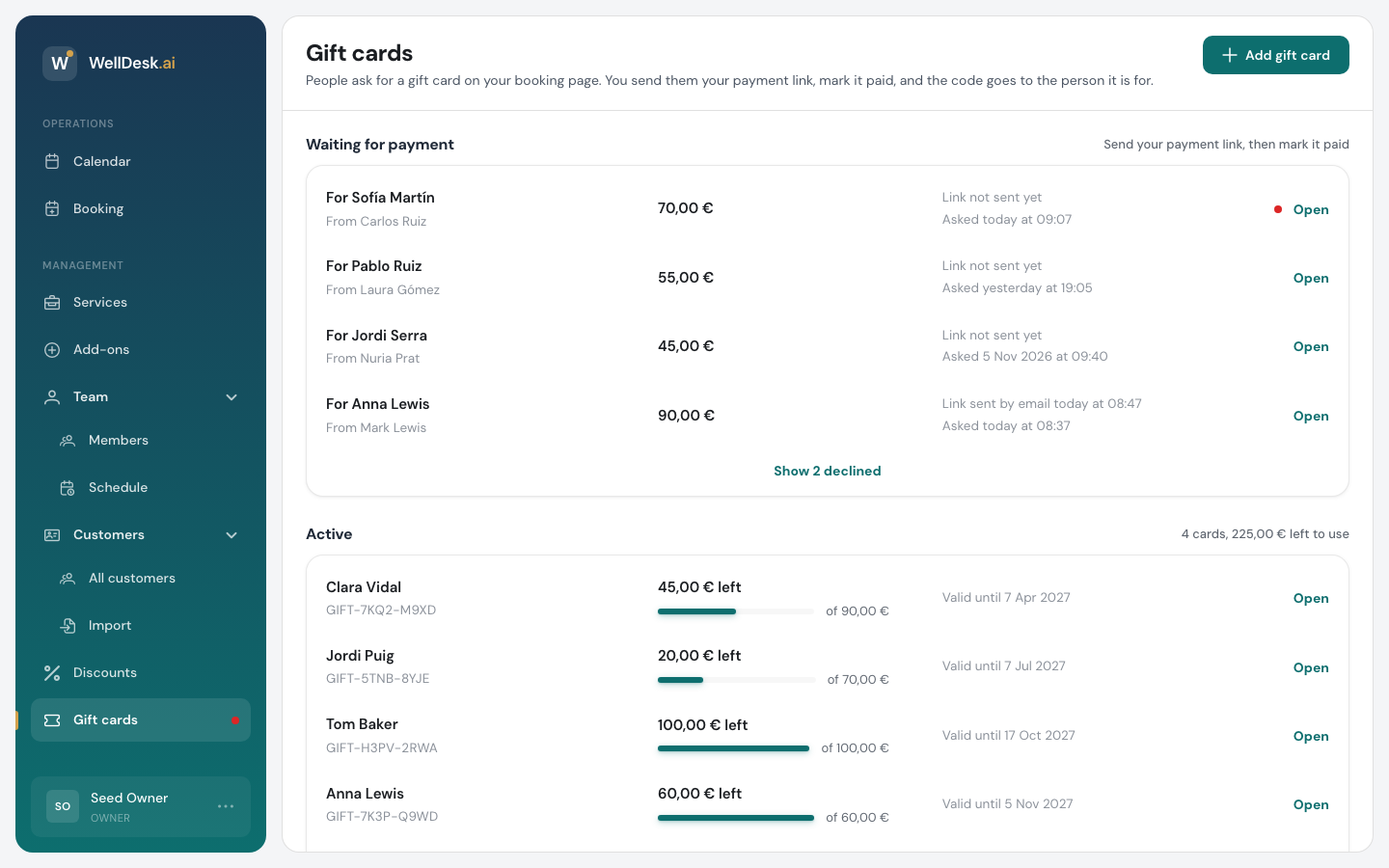
Each request shows who it is for and from, the amount, and where it stands: Link not sent yet, or when and how you sent the link. One you haven’t looked at yet says Not opened yet.
Declined requests are hidden. Show declined at the bottom of the list brings them back.
Answering a request
Click Open on a request.
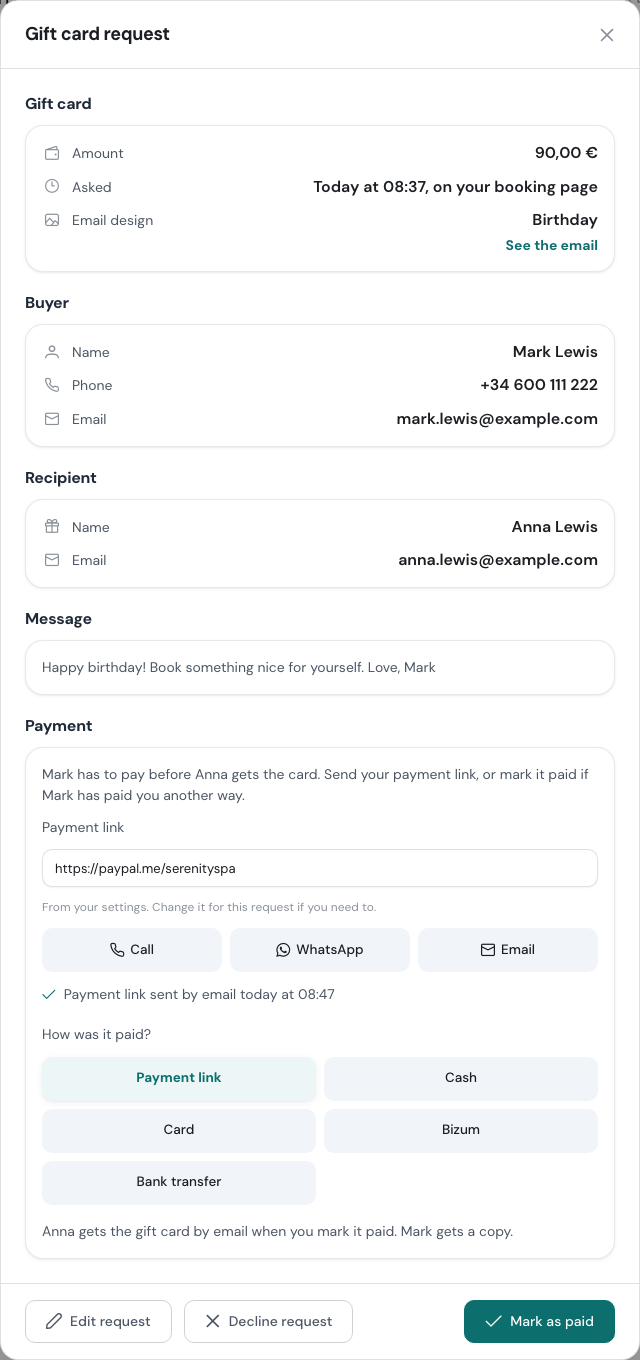
You see the amount, the design (with See the email), the buyer, the person it is for, and the message. The Payment card at the bottom is where you act.
1. Send your payment link
The Payment link field is filled in from your settings. Change it here if this request needs a different one, for example a link for this exact amount.
Then pick how to reach the buyer:
- WhatsApp opens WhatsApp with a message and your link ready to send. The buyer’s number needs a country code (such as +34), or WhatsApp can’t open it.
- Email sends the buyer an email with your link straight away.
- Call rings them, if you’d rather talk.
After WhatsApp or Email, the request shows when you sent the link, so anyone on your team can see it has been done.
2. Mark it as paid
When the money has arrived, choose How was it paid? (Payment link, Cash, Card, Bizum or Bank transfer) and click Mark as paid.
The buyer doesn’t have to use your link. If they come in and pay cash, pick Cash and mark it paid.
As soon as you do:
- the person it is for gets the gift card by email, with the PDF attached, and the buyer gets a copy;
- the card moves to Active on the Gift cards page;
- the card’s validity starts counting from today.
Changing a request
Edit request lets you change the amount, the design, who it is for, their email and the message before it is paid. The buyer’s own details can’t be changed here.
- If you change the amount after sending the payment link, WellDesk reminds you to send the link again so the buyer pays the right amount.
- If you remove the recipient’s email, the card goes to the buyer instead, to pass on themselves.
Declining a request
If you can’t go ahead (a duplicate, a test, or a buyer who never replied), click Decline request and confirm. The buyer gets a short email saying the gift card won’t go ahead.
A paid or declined request can’t be changed any more.
On a phone
The same steps work on a phone. Tap a request to open it. Edit request and Decline request are under the ⋯ button at the top, and Mark as paid sits at the bottom of the screen.