An add-on is an extra a client can have with a treatment: hot stones, an aroma oil, a facial massage at the end. Each one has its own price, and it can add time to the booking and earn the therapist a commission.
Owners and admins manage them.
- On a computer: Add-ons in the sidebar, under Services.
- On a phone: Menu → Add-ons.
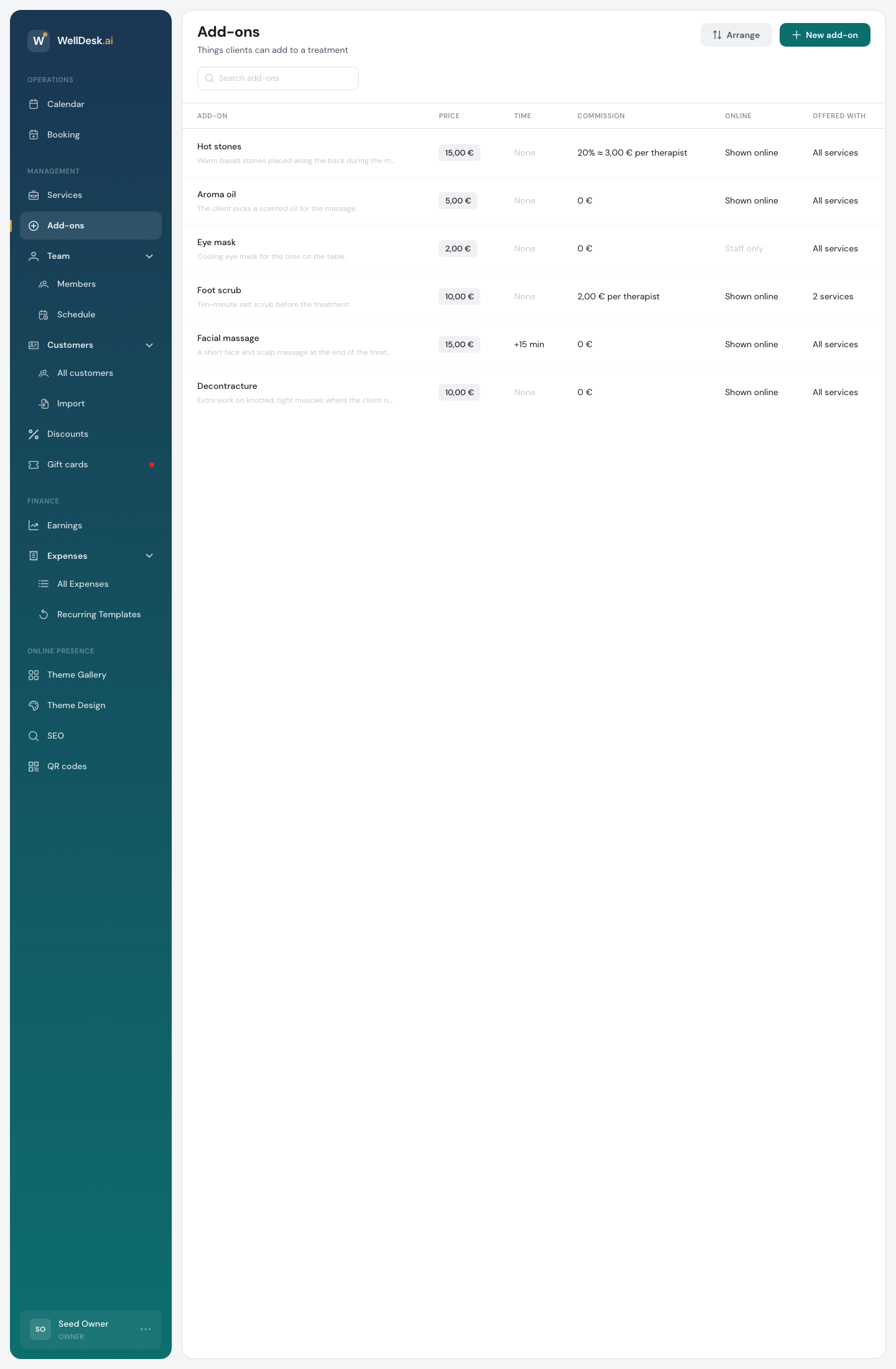
The list shows, for each add-on:
| Column | What it shows |
|---|---|
| Price | What the client pays for one |
| Time | How much longer the booking gets, or None |
| Commission | What the therapist earns for it |
| Online | Shown online if clients can pick it on your booking page, Staff only if not |
| Offered with | All services, or how many services it can go with |
Creating an add-on
- Click New add-on.
- Fill in the form.
- Click Create add-on (on a phone, Save add-on).
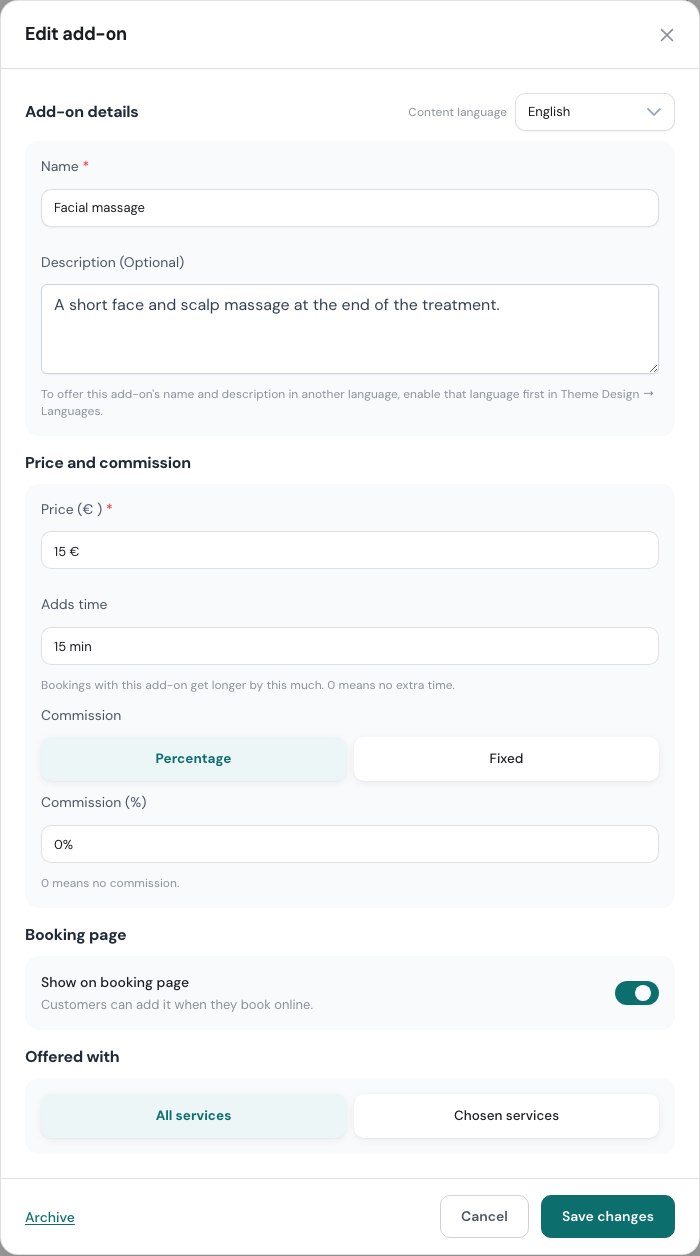
Add-on details
- Name: what clients and staff see, for example “Hot stones”.
- Description (Optional): what the client gets.
If your shop offers more than one language, the Content language switch lets you write both in each language, the same way as for services.
Price and commission
| Field | Notes |
|---|---|
| Price | Required. The price of one. |
| Adds time | How many minutes longer a booking gets with this add-on, from 0 to 480. 0 means no extra time. |
| Commission | Percentage of the add-on’s price, or a Fixed amount. It’s paid to each therapist on the booking. 0 means no commission. |
The commission field shows only when your shop tracks commissions and has two or more bookable team members. See Pricing Tiers.
Extra time matters for the calendar. A 60-minute massage with a 15-minute facial massage is booked as 75 minutes, and only times with 75 free minutes are offered. A booking can’t be longer than 8 hours with its add-ons.
Booking page
Show on booking page lets clients add it themselves when they book online. Leave it off for extras you only want to offer at the shop. They show as Staff only in the list.
Offered with
- All services: the add-on can go with any treatment.
- Chosen services: tick the services it fits. Clients see it only when they book one of these.
Where add-ons are picked
When you create or edit a booking
In Create Booking, after you pick the service and length, click + Add-on and choose one. Use + and − to change how many, or the bin to remove it. The form says how many minutes the add-ons add, and the times listed already allow for them.
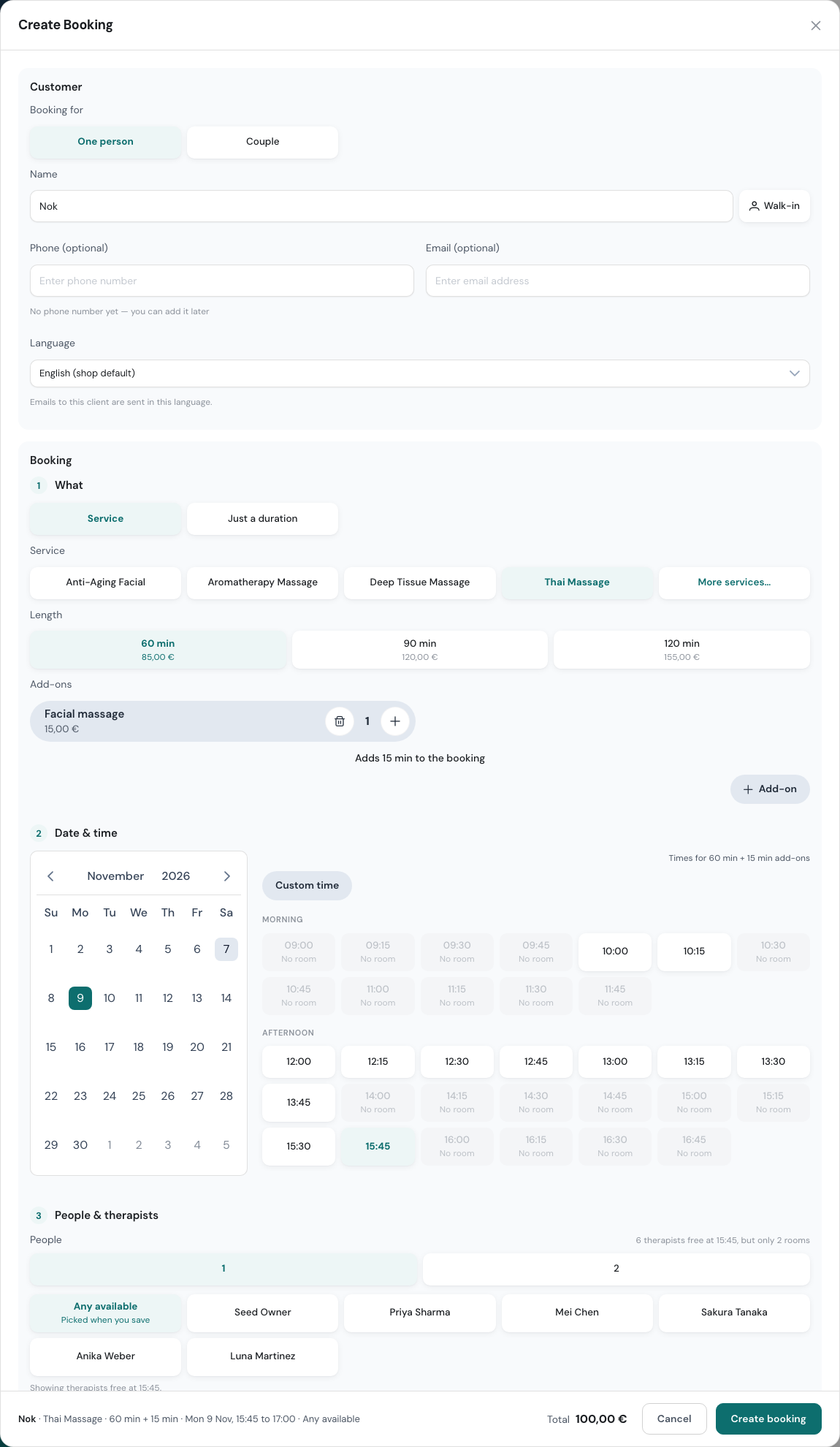
If you change to a service the add-on isn’t offered with, it’s removed and the form tells you. In a couple booking each person can have their own add-ons. Add-ons can only be changed while a booking is upcoming. See Creating a Booking.
At checkout
When you complete a booking, the Add-ons card lists what was booked. Click + Add-on to add more, or Something else for an extra that isn’t in your list: type what it is and its price. A “Something else” line counts towards the service’s commission. See Completing a Booking.
On your booking page
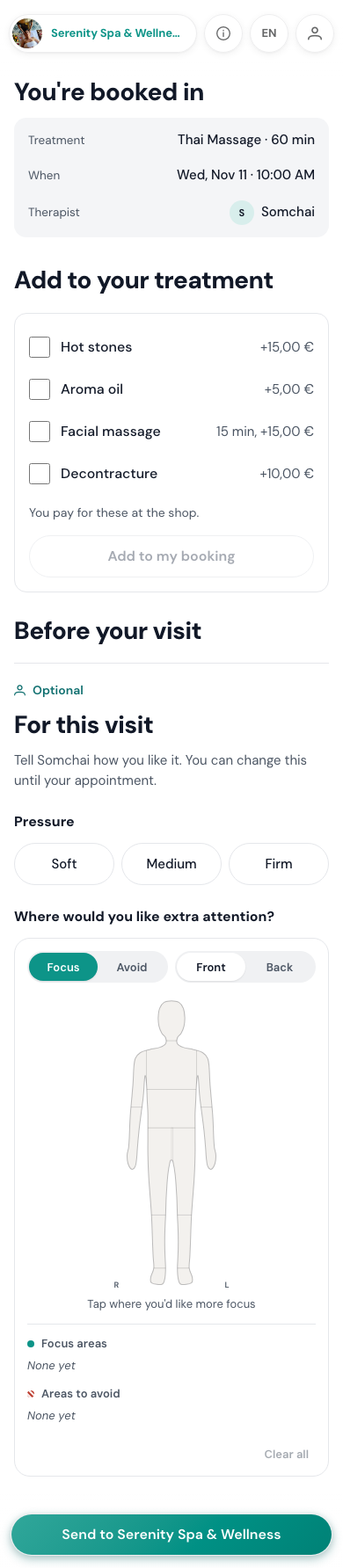
Clients see Add to your treatment while they book, with the add-ons that are shown online and offered with the treatment they picked. The times they’re offered already include the extra minutes. If they pick an add-on after choosing a time that is now too short, the time is cleared and they pick another.
After the client has booked
The booking confirmation and reminder emails link to the client’s visit page. There they can tick add-ons under Add to your treatment and press Add to my booking. They pay for these at the shop. An add-on that no longer fits before the next booking shows “Doesn’t fit your time any more. Ask the shop.”
Putting add-ons in order
Click Arrange (on a phone, the arrows button at the top), drag add-ons into the order you want and click Save order. Clients see that order when they book.
On a phone
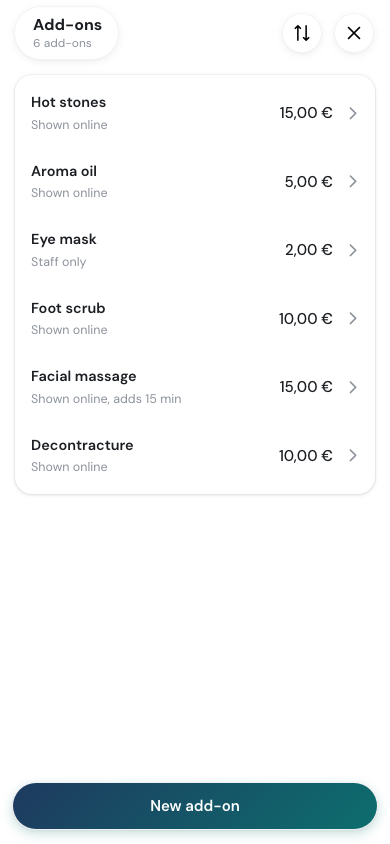
The phone list shows each add-on with its price, whether it’s shown online and any extra time. Tap one to edit it, or New add-on at the bottom to create one. The form has the same sections as on a computer.
Changing or archiving an add-on
Click an add-on to edit it, then Save changes. A booking keeps the price, time and commission an add-on had when it was added, so a change only affects add-ons added from then on.
To stop selling one, open it and click Archive (on a phone, ··· then Archive add-on). It disappears from the list and can’t be added to new bookings. Bookings that already have it keep it.
Seeing what you sold
Earnings has an Add-ons view: how many of each add-on were sold, the revenue and the commission. How add-ons were sold shows where they came from: at checkout, by staff when booking, on the online booking page, or from the confirmation email, reminder email or visit page. See Earnings and Commission.
Tips
- Give an add-on extra time only if it really needs it. A 0-minute aroma oil doesn’t move the next booking. A 15-minute facial massage does.
- Show the add-ons clients would choose themselves online. Keep the ones that need a conversation as Staff only.
- Use Chosen services when an extra only suits some treatments, so clients don’t see hot stones on a facial.