If some of your clients book you through another platform, such as ClassPass, make that platform a booking channel. A channel has its own list of services, with the length the platform sells and the amount it pays you. When you mark a booking as coming from the channel, it uses those services instead of your own, and its money can go to its own row in Earnings.
Your channel services never show on your public booking page. Clients there only see your own services and prices.
Where channels live
Only an owner or admin can set up channels.
On a computer: click your name at the bottom of the sidebar, choose Settings → Shop, and open the Booking tab. Booking channels is the last section.
On a phone: open Menu → Shop settings → Online booking. Booking channels is at the bottom.
Adding a channel
- Click New channel.
- Under Name, type the platform’s name, for example ClassPass. Your team sees this name when they make a booking.
- Under Payment method, pick the method this platform’s money should be recorded under (see below), or leave it on None.
- Click Save Changes. On a phone, tap Save changes at the bottom.
You can add the channel’s services once it’s saved.
Adding the channel’s services
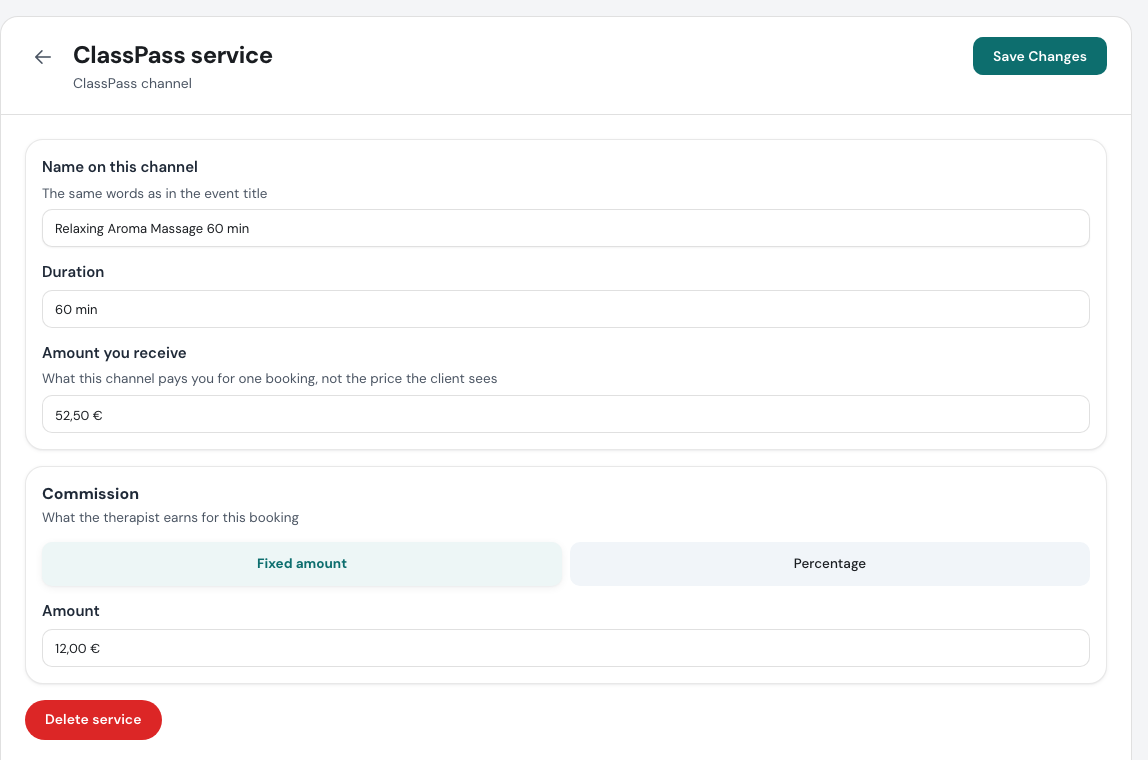
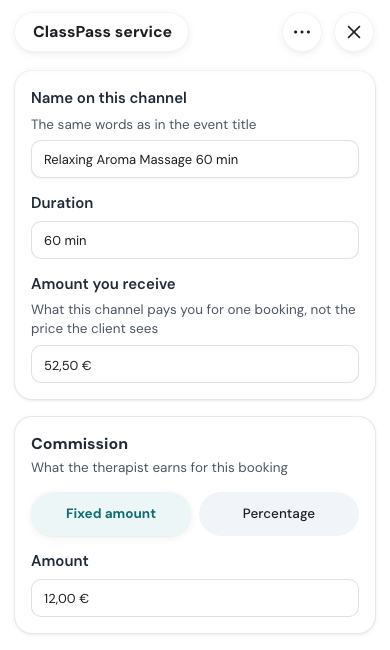
Under Services on this channel, click New service and fill in:
| Field | What to enter |
|---|---|
| Name on this channel | The service’s name as the platform writes it. |
| Duration | The length the platform sells, in minutes. |
| Amount you receive | What the platform pays you for one booking, not the price the client sees on the platform. |
| Commission | What the therapist earns for this booking: a Fixed amount or a Percentage. |
Click Save Changes. Add one service for each one the platform sells, even when it is the same massage as one of your own, because the length and the amount usually differ.
To change or delete a service, click it in the list. Delete service removes it from the channel for good.
The payment method
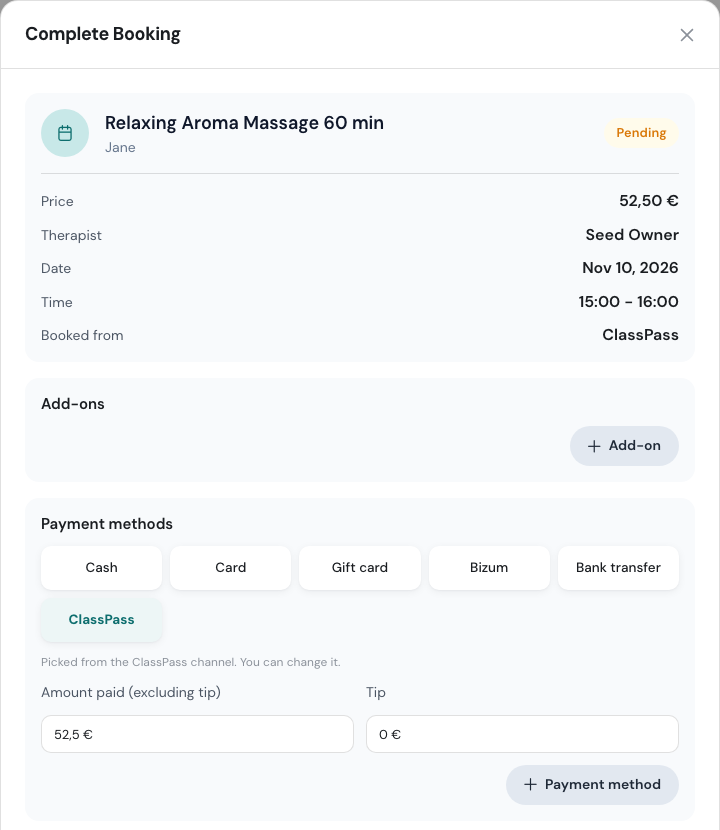
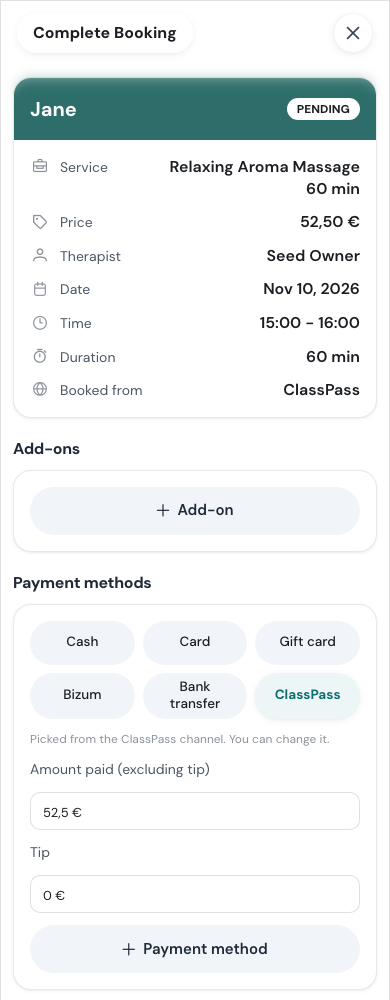
A channel can carry a payment method, so its bookings stay out of your Cash and Card totals. When someone completes a booking from the channel, that method is already picked for them, with the note Picked from the ClassPass channel. You can change it.
The list shows your shop’s own payment methods. If it’s empty, add one first, for example ClassPass, under Your own payment methods. See Payment Settings.
Marking a booking as coming from a channel
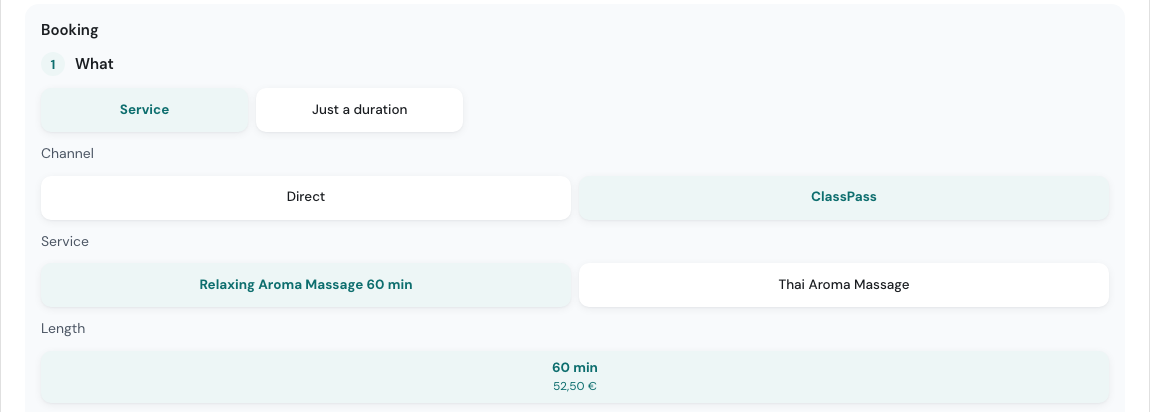
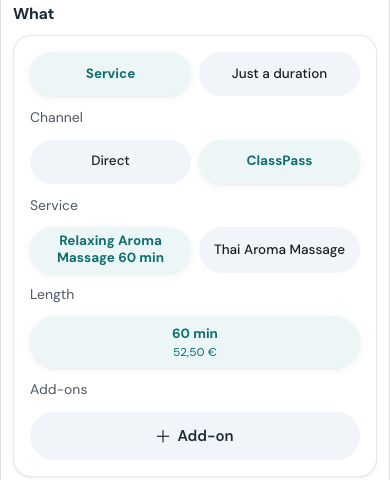
Once your shop has a channel, New booking shows a Channel choice: Direct, plus one button per channel. Direct means the client booked you, not a platform.
If the platform puts its bookings in a Google calendar, as ClassPass does, WellDesk can make these bookings for you. See Import Bookings From Other Platforms Through Google Calendar.
- Open New booking as usual.
- Under Channel, pick the platform.
- The service list changes to that channel’s services. Pick one, then the date, time and therapist as for any other booking.
You can change the channel later in Edit booking. Going back to Direct brings back your own services.
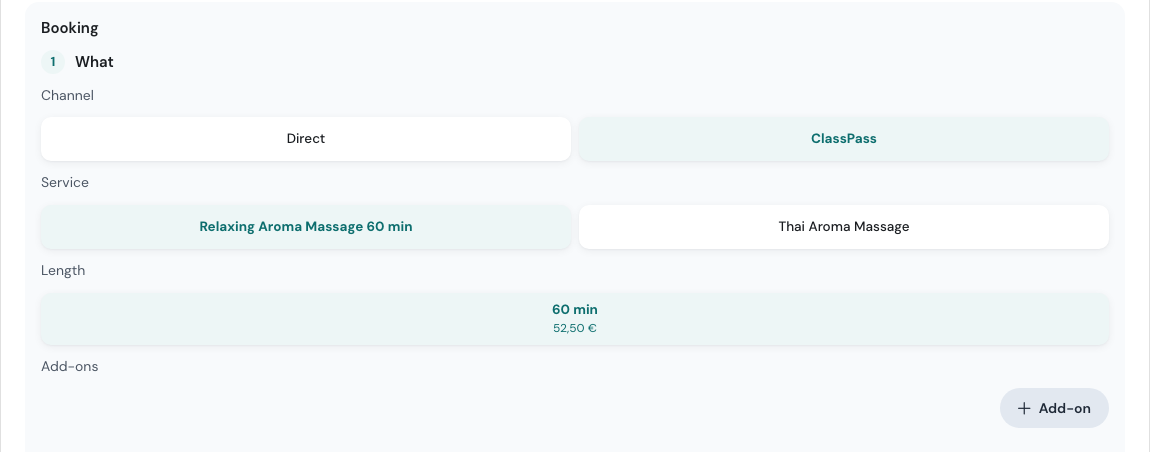
Booking Details then shows the channel under Booked from.
The Channel choice only appears for a booking for one person. A couple booking or a booking for several people at once can’t come from a channel, and the channel of an existing couple booking can’t be changed.
Completing a channel booking
Complete it as any other booking. The amount is what the channel pays you, and the payment method is the channel’s, if it has one. You can still pick another method. See Completing a Booking.
Renaming or deleting a channel
Click the channel in the list, change the name and click Save Changes.
Delete channel deletes the channel and all its services, and can’t be undone. On a computer it’s at the bottom of the channel’s page. On a phone, it’s in the More actions menu at the top.
Tips
- Copy the platform’s own wording for service names and lengths. It’s then easy to tell which service a platform booking was for.
- Give each platform its own payment method. Your Earnings then show at a glance how much came through each one.
- Use Direct for everything else, including clients who first found you on a platform and now book you directly.