General holds your own settings, not the shop’s. Everyone on the team has it, and what you change here only affects you.
Opening the settings
On a computer: click your name at the bottom of the sidebar and choose Settings → General.
On a phone: Menu → General.
Your name changes are saved with Save Changes on a computer, or Save changes at the bottom on a phone. The other settings on this page save as soon as you change them.
Your name
| Field | What it’s for |
|---|---|
| First Name and Last Name | Your name in WellDesk. Both are required. |
| Display Name (Optional) | The name clients see instead of your full name. On a phone it’s called Name clients see. |
Leave the display name empty and clients see only your first name. Your last name is never shown to clients.
Language
Display Language sets the language WellDesk shows you. On a phone, tap Language under App. It only changes WellDesk for you: your colleagues keep theirs, and your booking page’s languages are set in Shop Settings.
You can pick English, Spanish, Catalan, German, French, Chinese (Simplified), Chinese (Traditional), Korean, Thai and Nepali.
Notifications
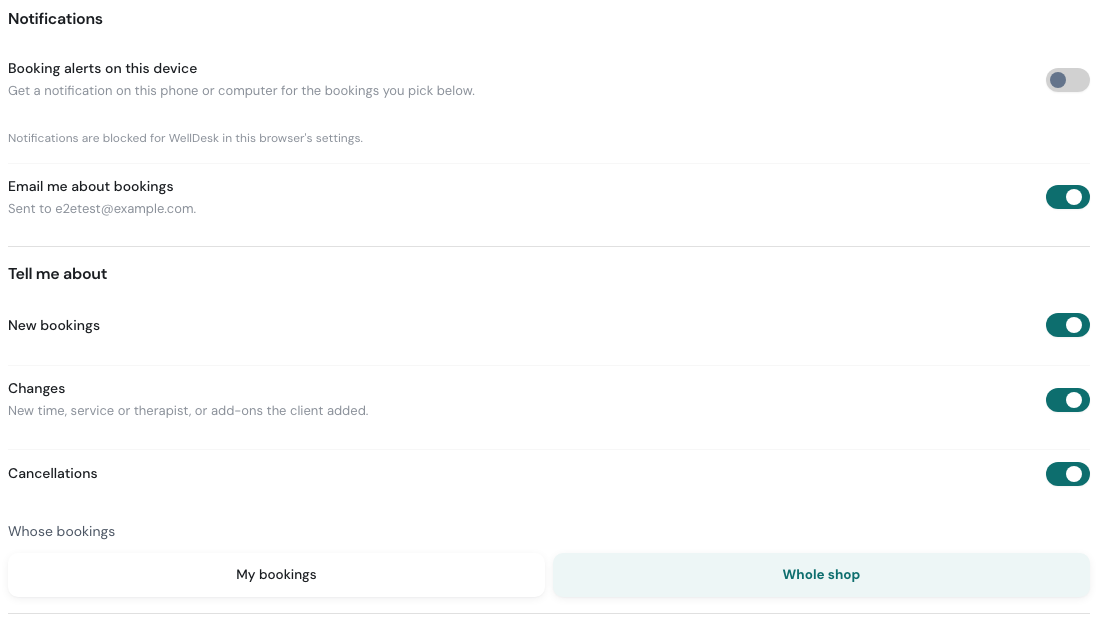
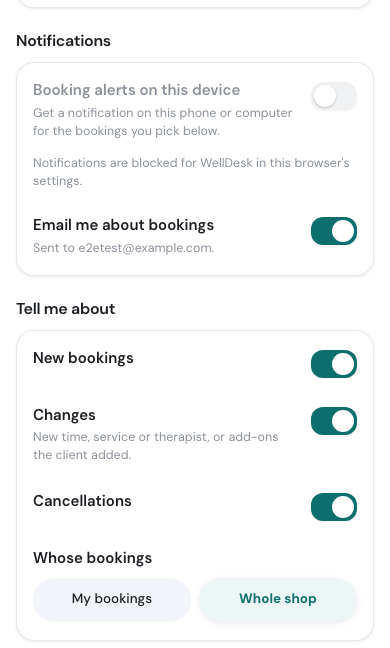
Choose how you hear about bookings, and which ones.
| Setting | What it does |
|---|---|
| Booking alerts on this device | A notification on this phone or computer when a booking comes in, moves or is cancelled. |
| Email me about bookings | An email to your login address for the same bookings. |
Under Tell me about, pick the events: New bookings, Changes (a new time, service or therapist, or add-ons the client added) and Cancellations. Owners and admins also choose Whose bookings: My bookings or Whole shop. Everyone else hears about their own bookings.
Until you change anything here, you get the shop’s defaults from Shop Settings → Notifications. Once you change something, your choice wins. See Notification Settings.
Turning on booking alerts
- Switch on Booking alerts on this device.
- When your browser asks, allow notifications.
Alerts are per device. Turn them on separately on your phone and your computer if you want both.
- iPhone or iPad: alerts only work once WellDesk is on your Home Screen. In Safari, tap Share, then Add to Home Screen, and open WellDesk from the new icon. Until then the page tells you so instead of showing the switch. See Adding WellDesk to Your Home Screen.
- Blocked: if you said no to the browser earlier, the switch is greyed out and the page says Notifications are blocked for WellDesk in this browser’s settings. Allow notifications for WellDesk in your browser’s site settings, then come back.
Health form PIN
If your shop asks for a PIN before anyone opens a client’s health answers, Health form PIN is where you set or change yours. See Health Form PIN.
Google Calendar
The Google Calendar section connects the shop’s bookings to Google Calendar, or adds the shop calendar to your own Google account. See Google Calendar Sync.