The health form asks your clients a few health questions before their first visit: pregnancy, heart conditions, a recent injury, or anything else you need to know before you treat them. They answer on their phone after booking, and you read the answers on the booking.
Clients book first and fill in the form second. The form never stands between a client and the Book button. They get it on the confirmation page, in the confirmation email and in the reminder.
Answers are encrypted, and only your team can see them. You choose who on your team can open them.
Where the settings are
- On a computer: Settings → Shop, then the Booking tab. The Health form section is further down the tab.
- On a phone: Menu → Shop settings → Online booking, then the Health form card.
The health form section saves on its own. Its switches take effect as soon as you flip them; you don’t need Save Changes.
Owners and Administrators can change the form. Only the owner can accept the agreement and turn on the PIN.
Step 1: accept the data processing agreement
Health answers are sensitive data. Before you can ask for them, the shop owner accepts a data processing agreement. It says that you decide which questions to ask and why, and that WellDesk stores the answers for your shop and no one else.
Until it is accepted, the section shows Accept the data processing agreement first and the Ask new clients to fill in a health form switch stays greyed out.
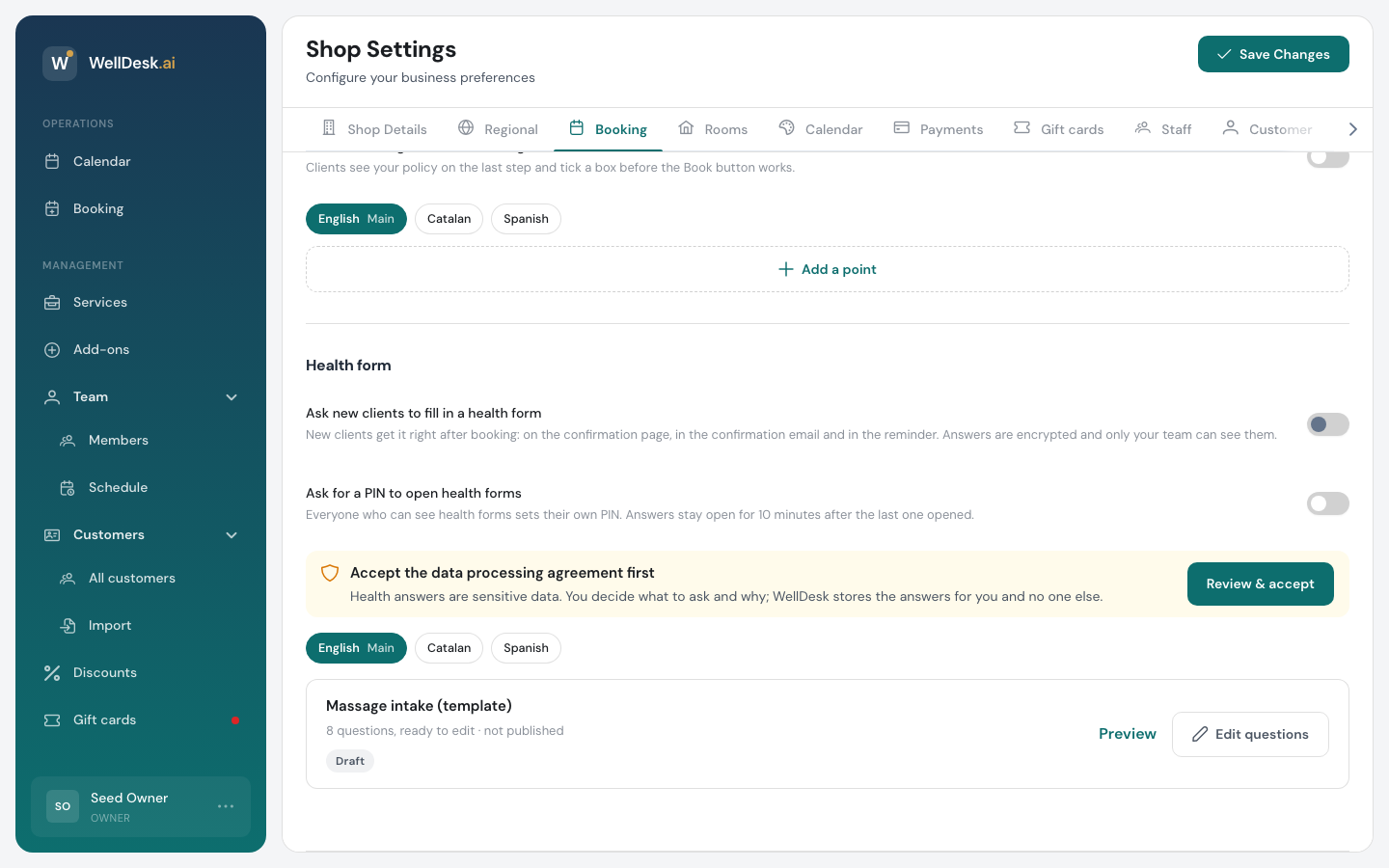
- Click Review & accept.
- Read the agreement and click Accept.
Once it is accepted, the section shows who accepted it and when. Click View beside that line to read it again.
On a phone you can’t accept it. The card says Accept the data processing agreement on a computer first.
Step 2: write your questions
Your form starts as a template with common massage questions, marked Draft. Click Edit questions to open it.
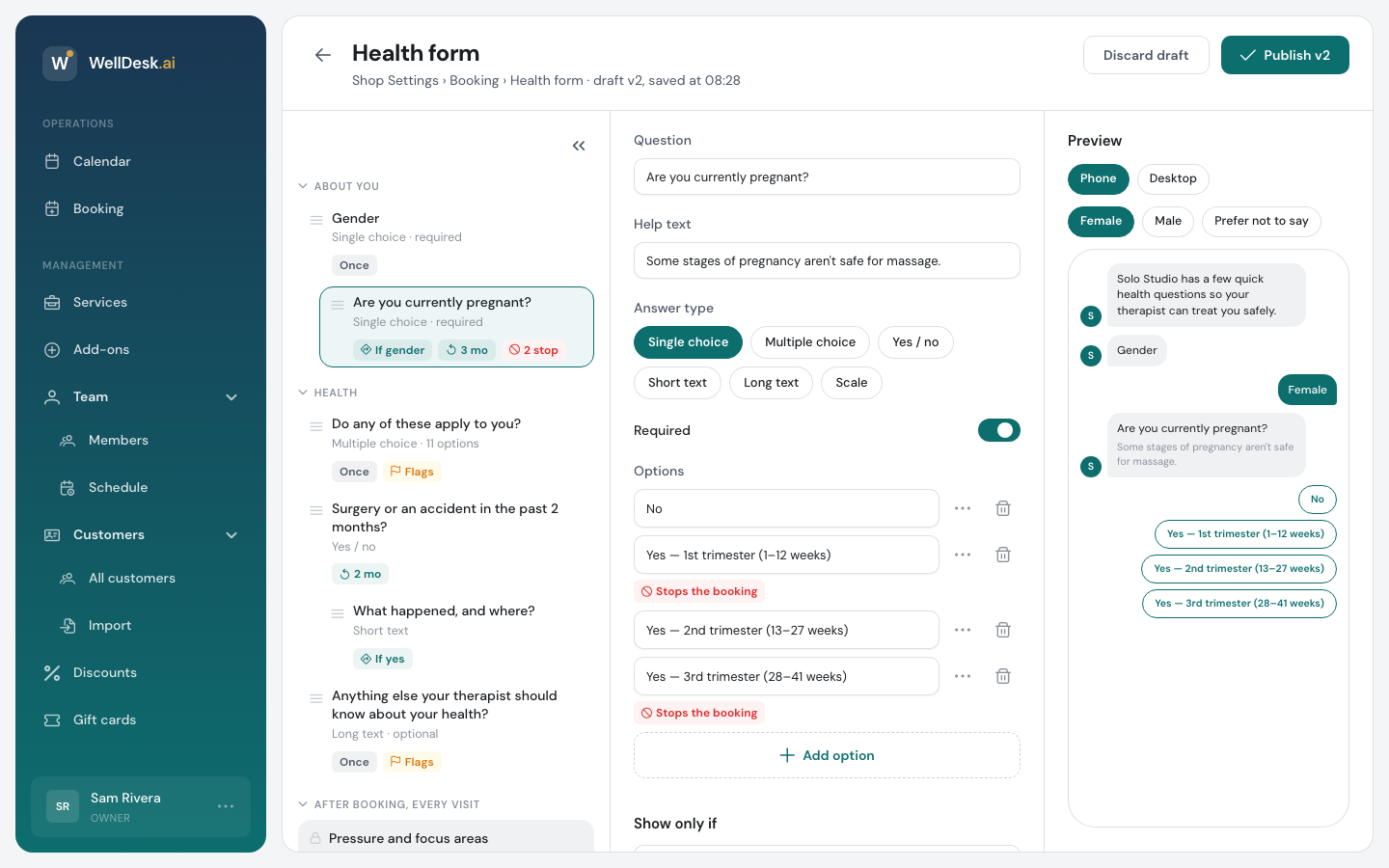
The editor has three columns:
- On the left, your questions in order. Drag a question by its handle to move it.
- In the middle, the question you picked, with all its settings. Click a question on the left to open it.
- On the right, a Preview of what your clients see, as a Phone or Desktop view.
Click Add question to add one. Your questions sit in two sections, About you and Health. Two more parts are added by WellDesk and can’t be edited:
- Pressure and focus areas, under After booking, every visit. The client picks a pressure and the areas to focus on or avoid. Clients can skip it.
- Health data consent, under Always last. The client agrees that you keep their answers. It can’t be removed.
Your changes are saved as you type. The line under the title says saved at and the time.
What each question can do
| Setting | What it does |
|---|---|
| Question | The question as the client reads it. |
| Help text | A short line under the question, for example why you ask. |
| Answer type | Single choice, Multiple choice, Yes / no, Short text, Long text or Scale. |
| Required | The client can’t send the form without answering. |
| Options | The answers to pick from, for the choice types. Click Add option for each. |
| Show only if | Ask this question only after a certain answer to an earlier one, for example ask about pregnancy only when the client picked Female. Always show asks everyone. |
| How often to ask | Once (first booking only), Ask again after a while (after the number of months you set) or Every booking. |
Ask again after a while suits answers that change, such as a recent operation. A returning client is asked just that question again once their answer is older than the months you set. With Every booking, a client who is logged in finds their last answer already filled in.
On a Multiple choice question, click Add group heading to sort a long list of options under headings, such as “Heart and blood” and “Skin”.
Options that need your attention
Click ⋯ beside an option for more:
- Stops the booking: the answer means you can’t do the treatment, for example the first trimester of a pregnancy. Write the message the client sees under When an answer stops the booking. See what the client sees.
- Show as a flag on bookings: the answer shows as a short tag on the booking, so the therapist sees it without opening the form. On a text question, the setting is Show as a flag on bookings when answered.
- Only answer: picking this option clears the others. Use it for “None of these”.
The question list shows small tags for these: If for a question that depends on another, Once, the months for Ask again after a while, Every booking, stop and Flags.
More than one language
If your booking page offers more than one language, pick a language above the question to write that version. A dot marks a language with a translation still missing. Clients see the form in their language where you have written it, and in your main language where you haven’t.
Delete a question or the whole draft
Delete question is at the bottom of the open question. Questions that depended on it are then shown to everyone.
Discard draft at the top throws away every change since the last version you published.
Step 3: publish
Click Publish v1 at the top of the editor, then Publish version 1. Clients who book from now on get these questions.
Later changes stay in a draft until you publish again. When you publish a new version, the dialog lists what changed since the last one.
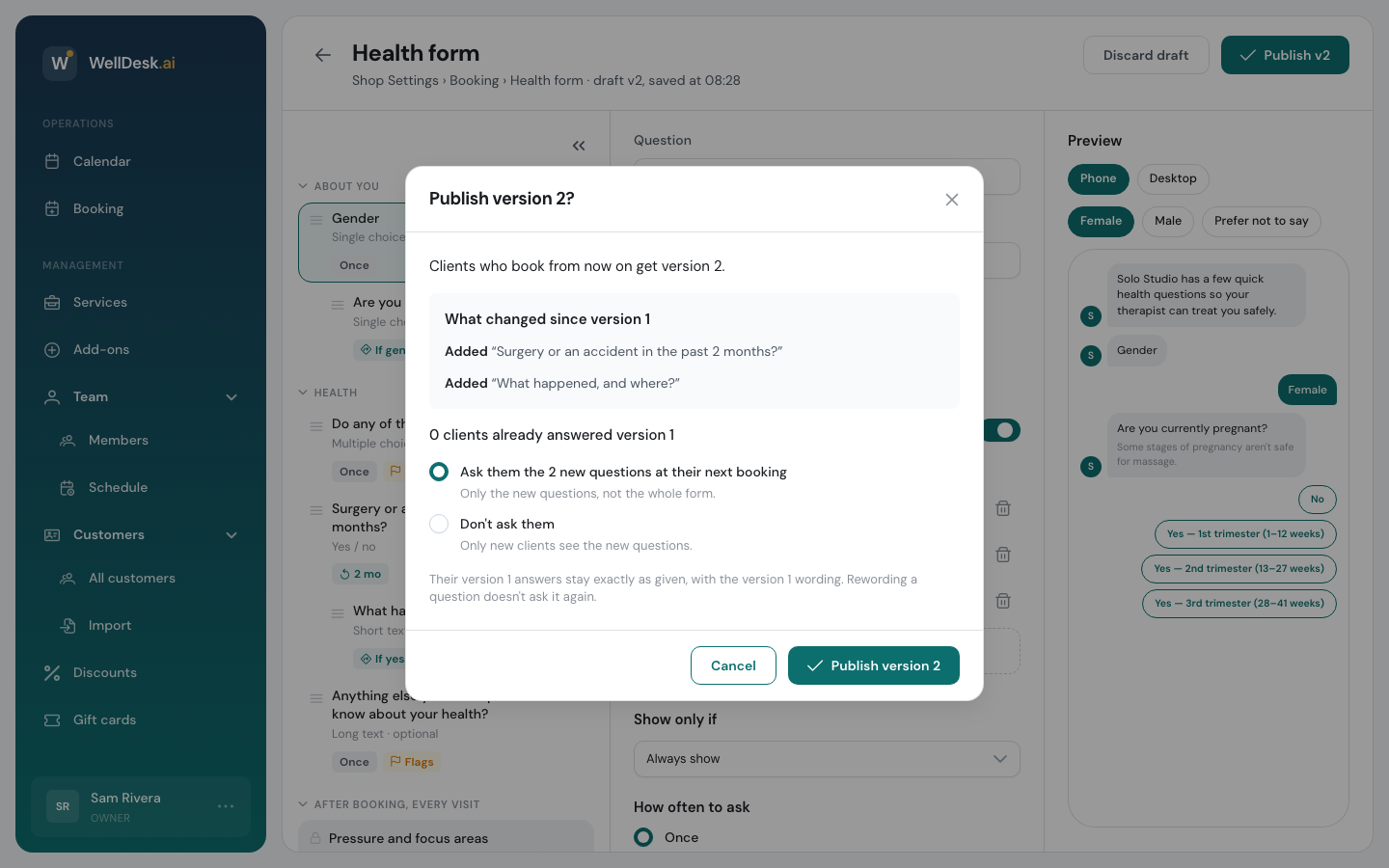
If you added questions, it asks what to do with clients who already answered:
- Ask them the new questions at their next booking. Only the new questions, not the whole form.
- Don’t ask them. Only new clients see the new questions.
Earlier answers stay exactly as given, with the wording the client saw. Rewording a question doesn’t ask it again.
Step 4: switch it on
Back in Settings → Shop → Booking, turn on Ask new clients to fill in a health form. New clients now get the form after they book.
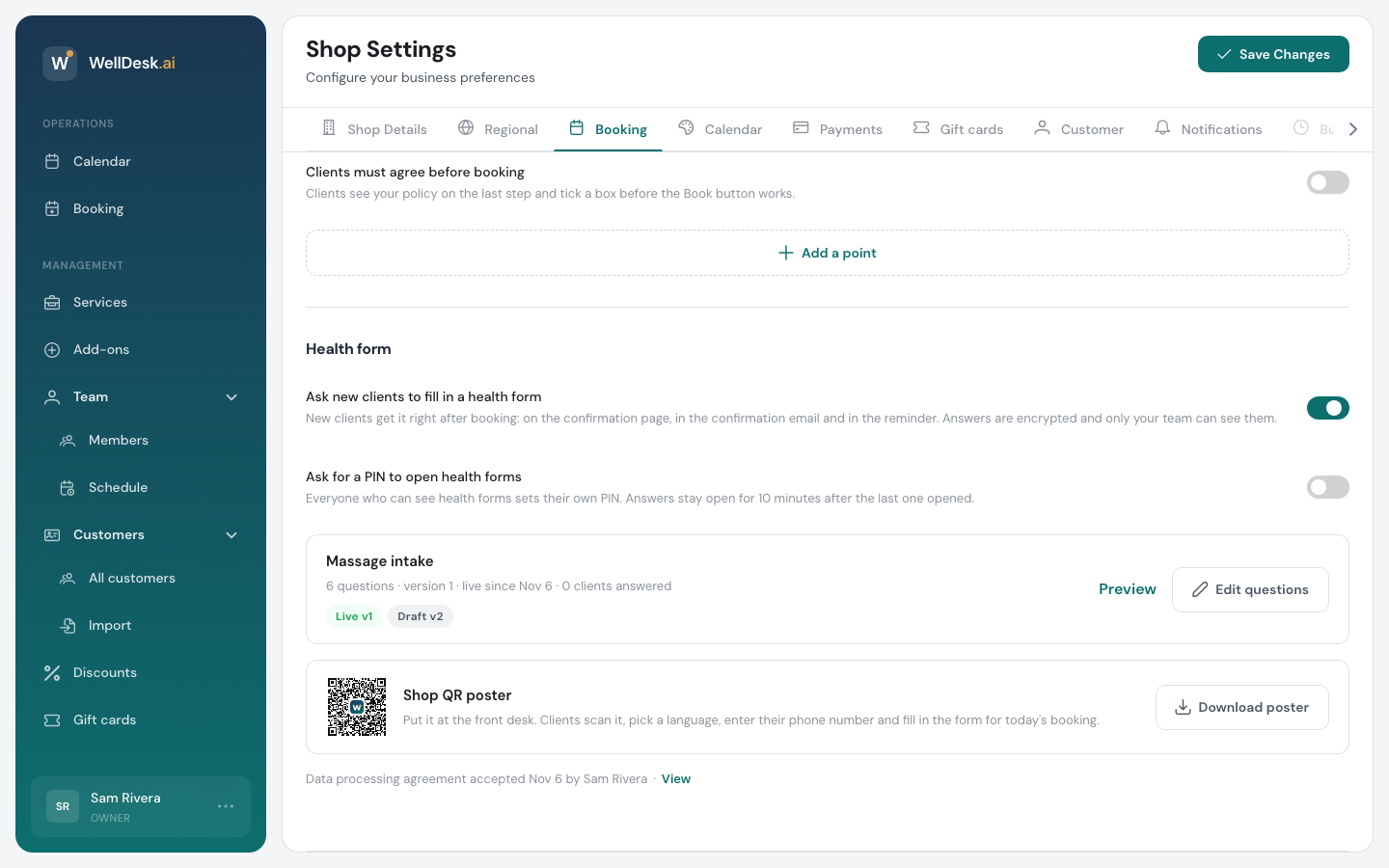
The section then shows:
- The form’s summary: its name, how many questions, which version is live, since when, and how many clients have answered. Live and Draft tags show what is published and what is waiting.
- Preview: the form as clients see it, without opening the editor.
- Edit questions: opens the editor.
- Shop QR poster: a poster for your front desk, so clients can fill in the form when they arrive. Click Download poster and print it. See Filling in the form at the shop.
- Ask for a PIN to open health forms: see Health Form PIN.
Turning the switch off stops asking new clients. Answers you already have stay on their bookings.
On a phone
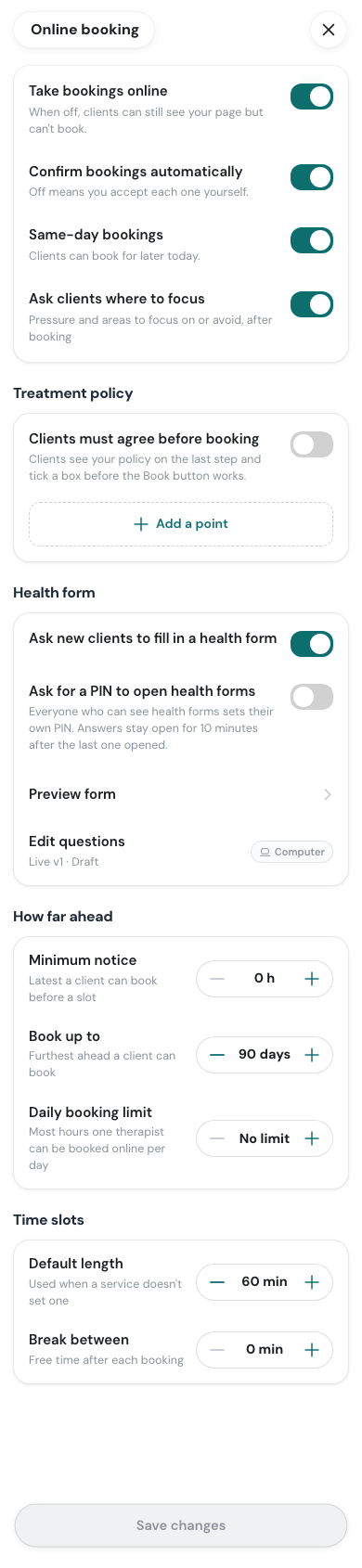
On a phone you can turn the form on or off, turn on the PIN and tap Preview form. Writing and changing questions needs a bigger screen: Edit questions tells you to open the address on a computer.
Already have a paper form?
WellDesk can copy your current form, on paper or online, into your draft. You then check it in the editor and publish it yourself. Ask us when you set up your shop.